How to Secure Your AWS Root Account and Create a Proper Admin User Link to heading
When you first set up your AWS account, you’re given access as the root user. While this account has complete control over your AWS environment, it should never be used for daily operations. Instead, it’s best practice to secure your root account with Multi-Factor Authentication (MFA) and create a dedicated administrative IAM user for regular use.
In this guide, we’ll walk through how to:
- Secure your root account with MFA
- Create a least-privilege-friendly administrator IAM user
- Enable MFA for the new admin user
- Create access keys for AWS CLI use
Let’s get started.
Step 1: Secure the Root Account with MFA Link to heading
Begin by navigating to My Security Credentials under your root account. If MFA is not yet enabled, you’ll see a security warning prompting you to assign one.
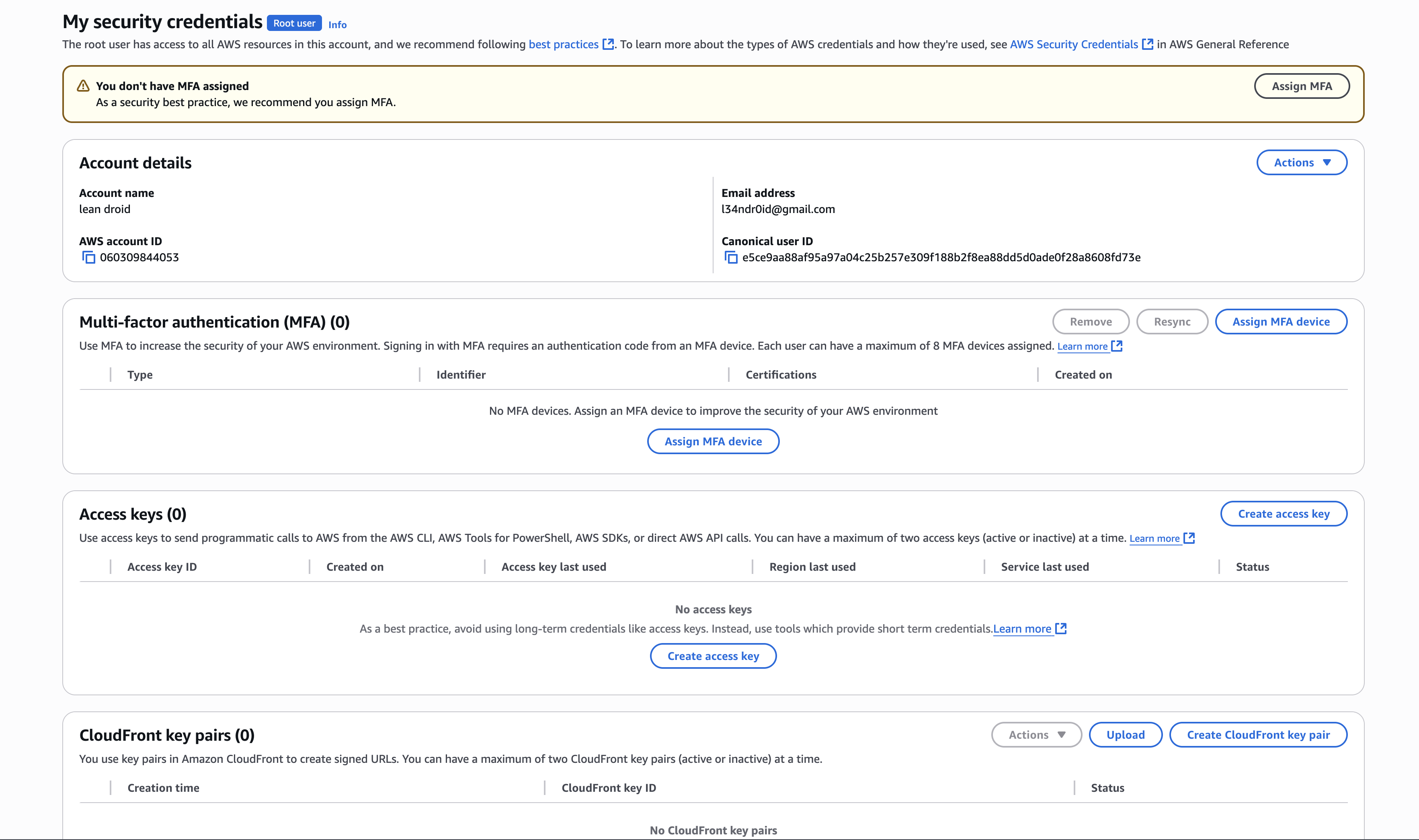
Click Assign MFA device to initiate the setup.
Choose an MFA Device Type Link to heading
Select Authenticator app—this allows you to use apps like Google Authenticator or Authy on your mobile device.
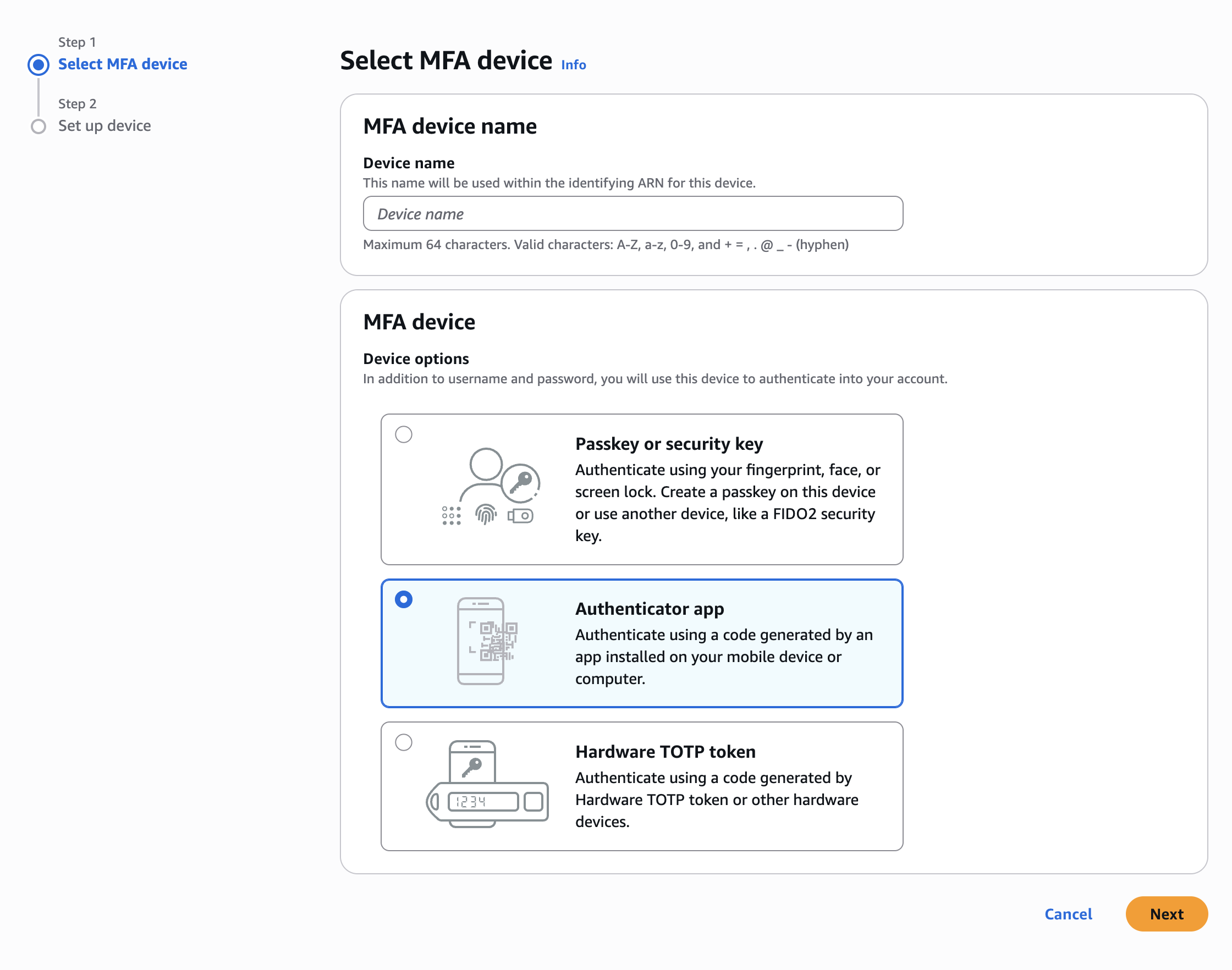
Scan the QR code using your app, input two consecutive codes, and confirm the configuration.
Once complete, you’ll receive a confirmation:
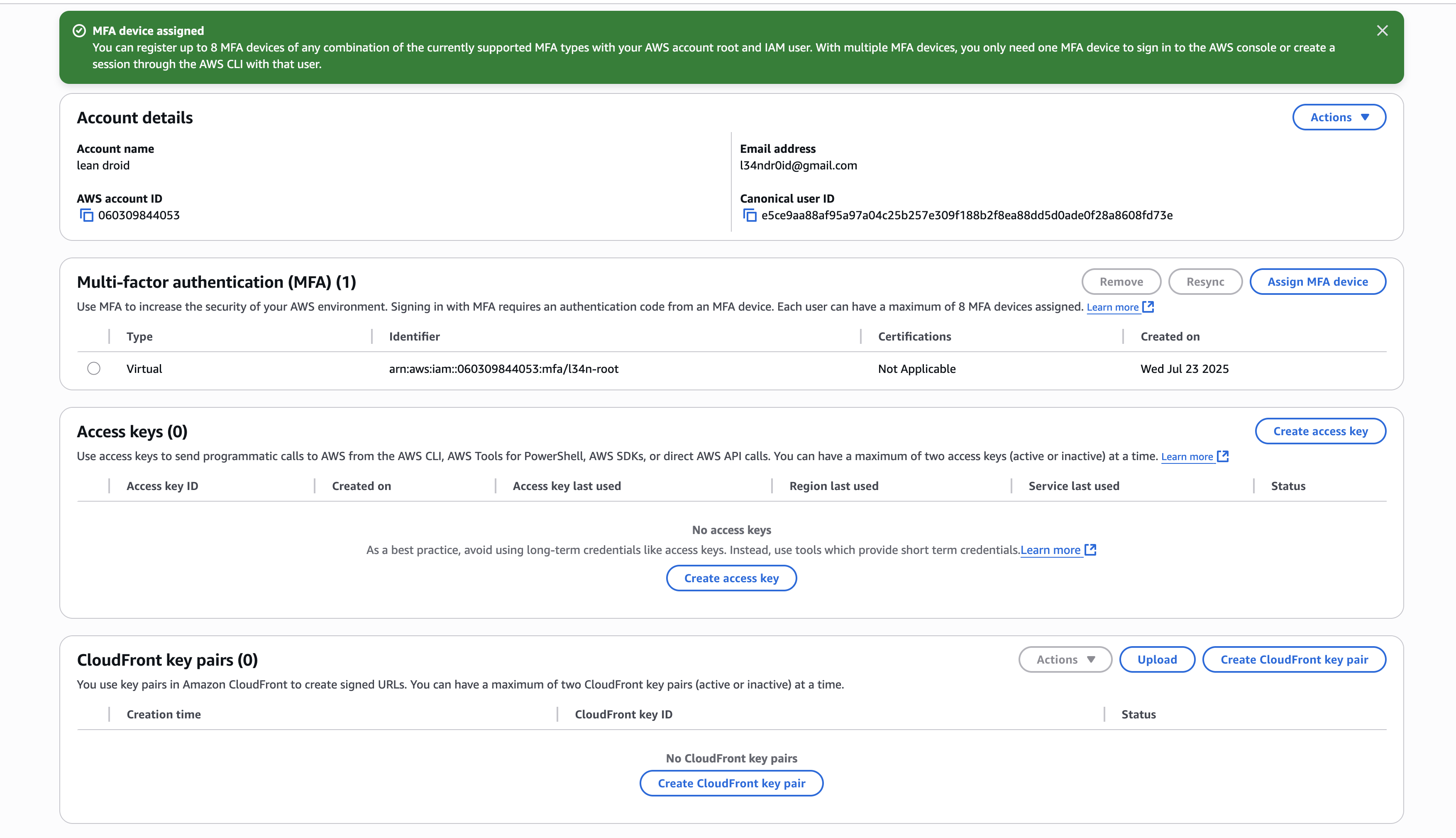
Your root account is now protected by MFA.
Step 2: Create a Dedicated IAM Admin User Link to heading
To avoid using the root account for everyday operations, create a dedicated IAM user with administrator privileges.
Navigate to IAM > Users > Add user.
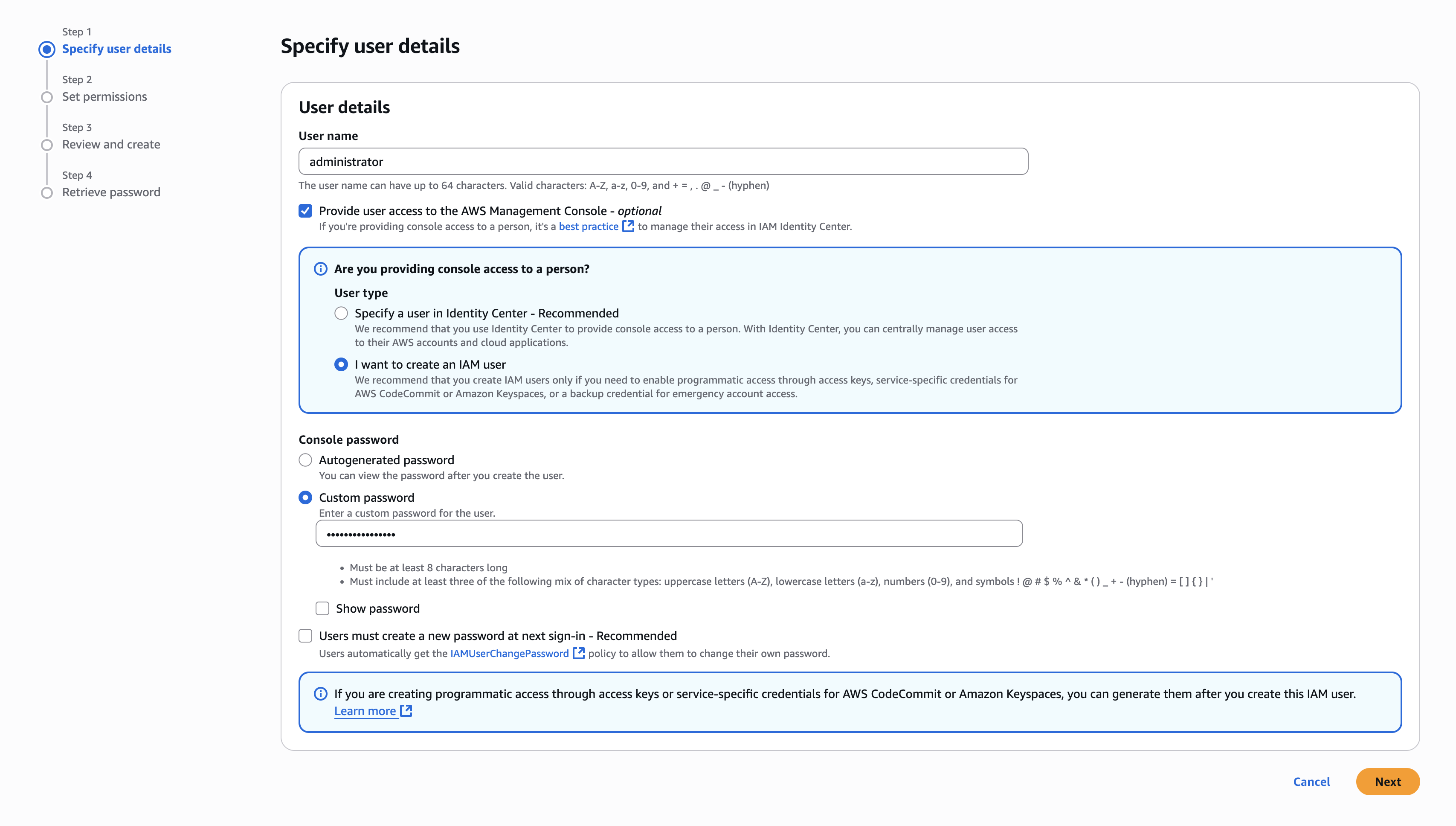
Specify User Details Link to heading
Provide a username like administrator, enable console access, and assign a custom password.
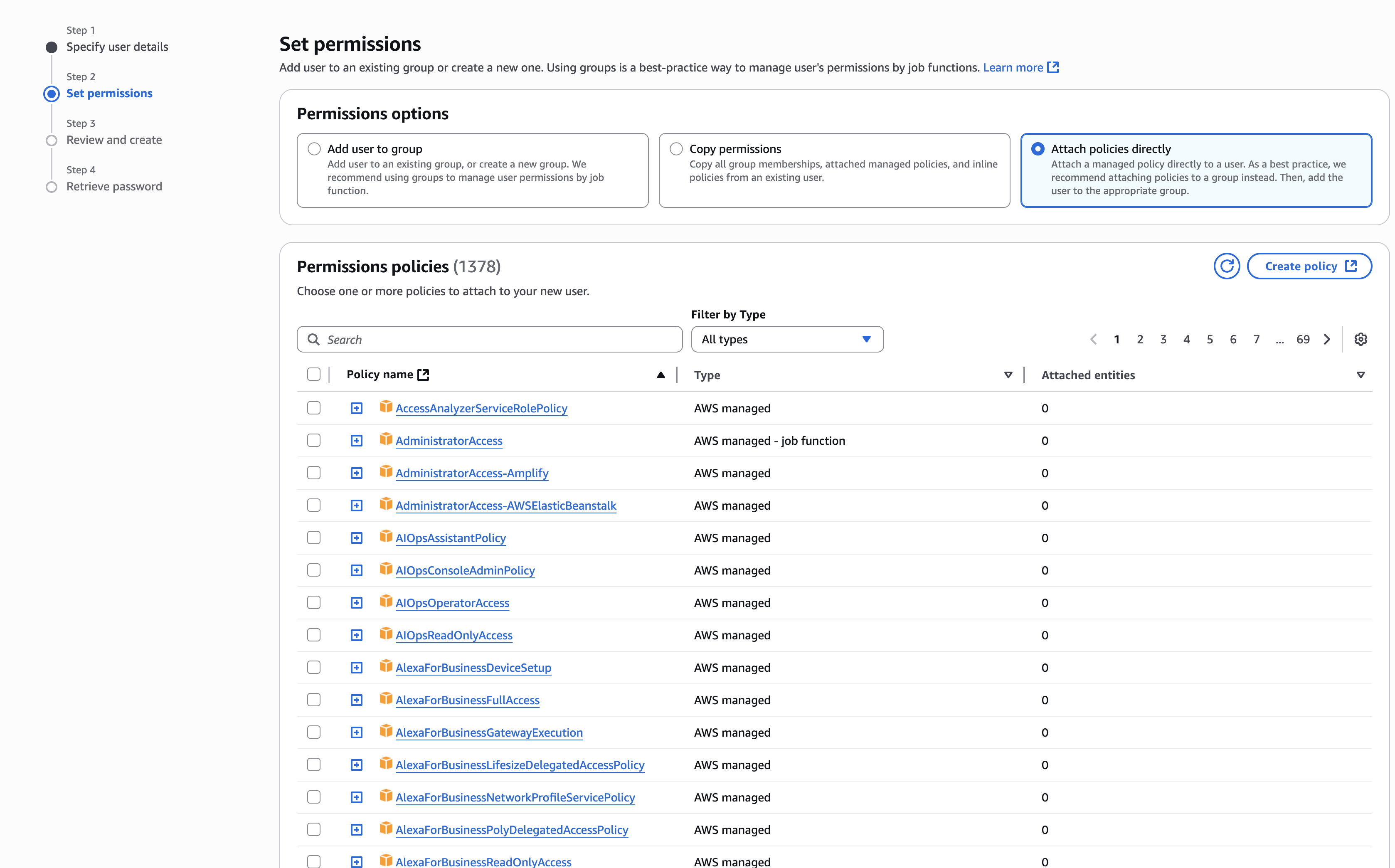
Set Permissions Link to heading
Choose Attach policies directly and select the AdministratorAccess managed policy.
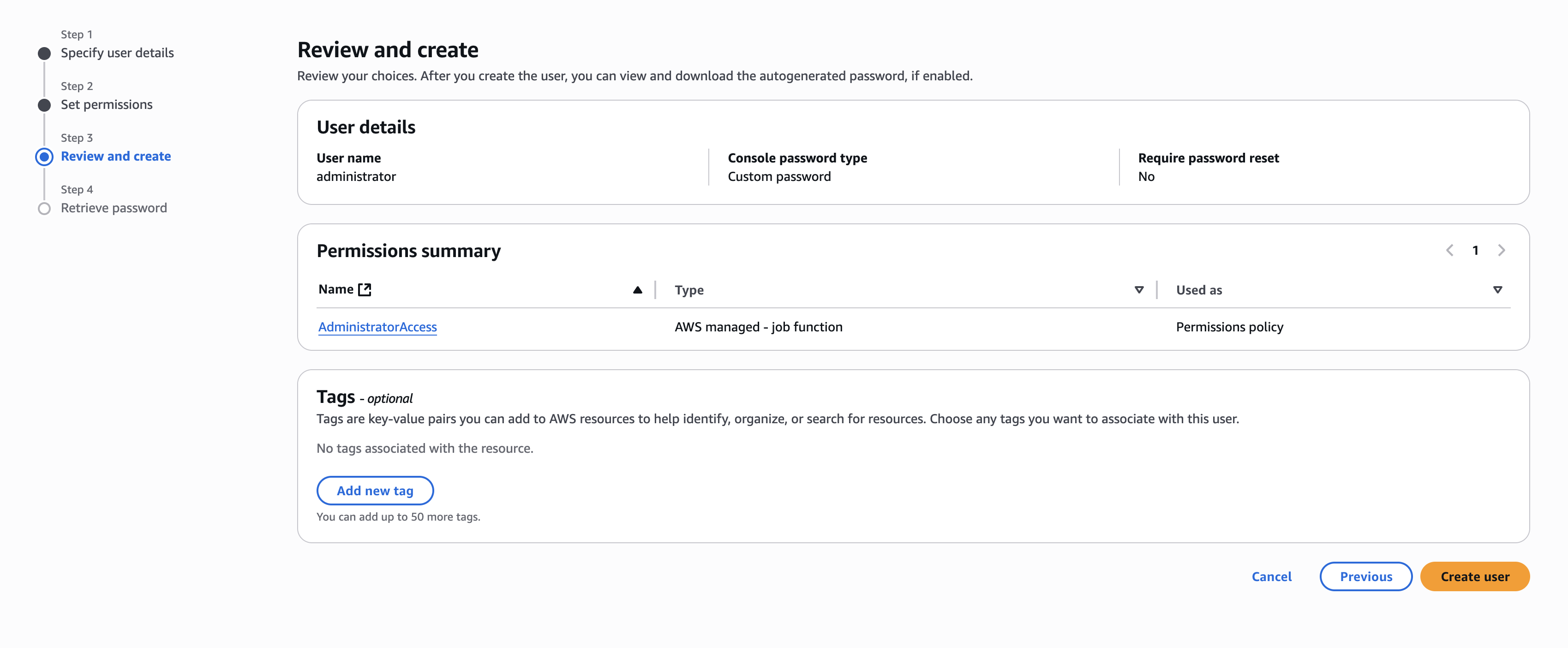
Review and Create Link to heading
Double-check the permissions and click Create user.
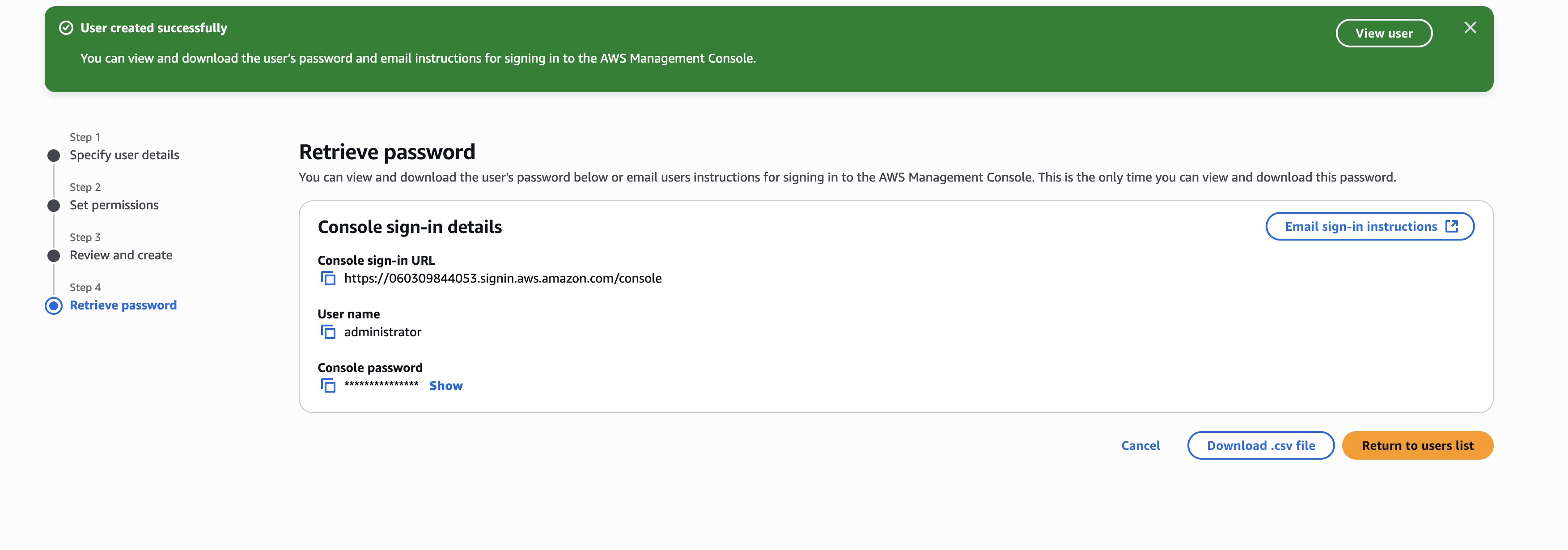
Once the user is created, save the credentials securely.
Step 3: Enable MFA for the Admin User Link to heading
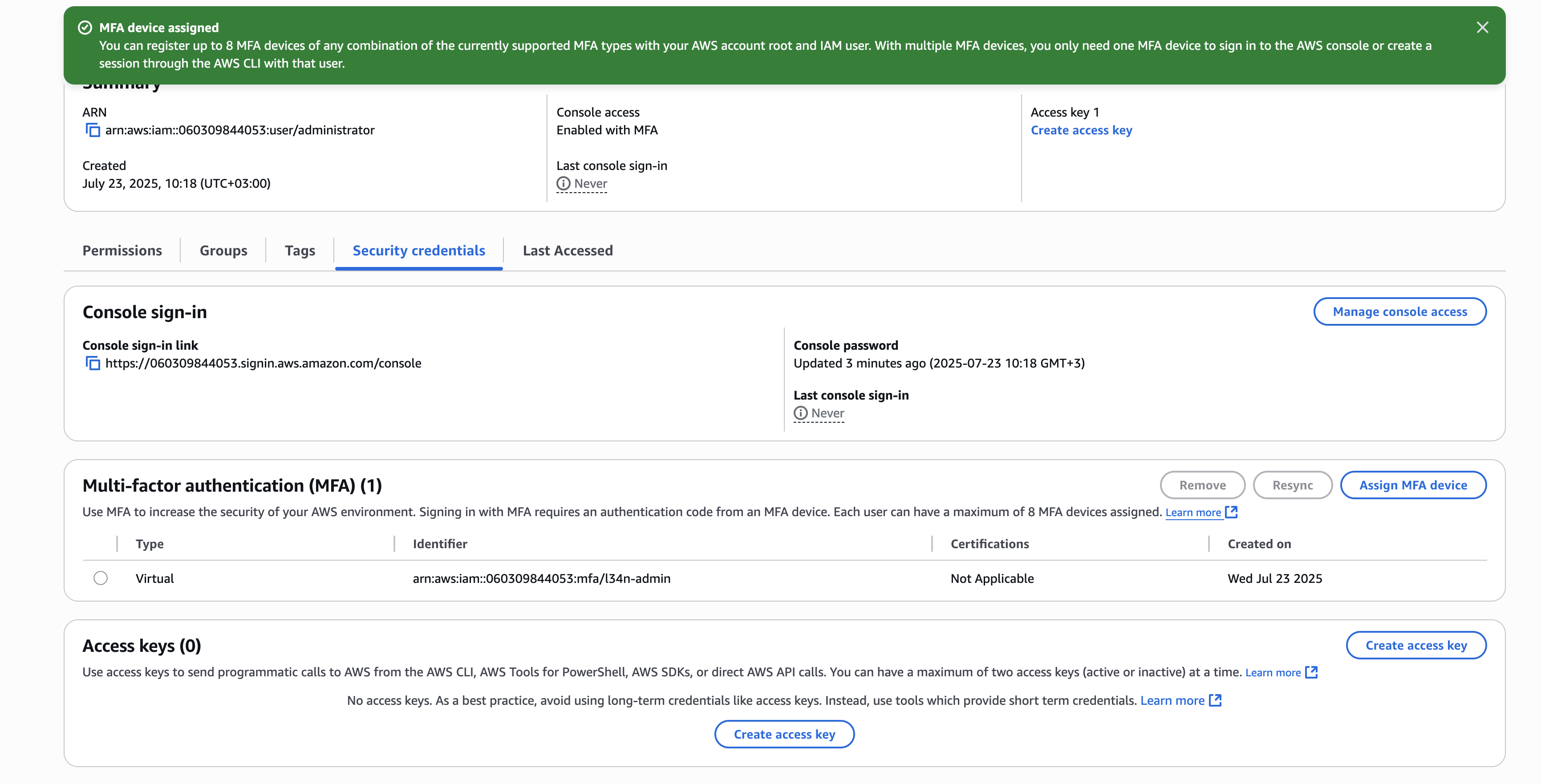
Navigate to the newly created user’s Security credentials tab. You’ll notice MFA is not enabled.
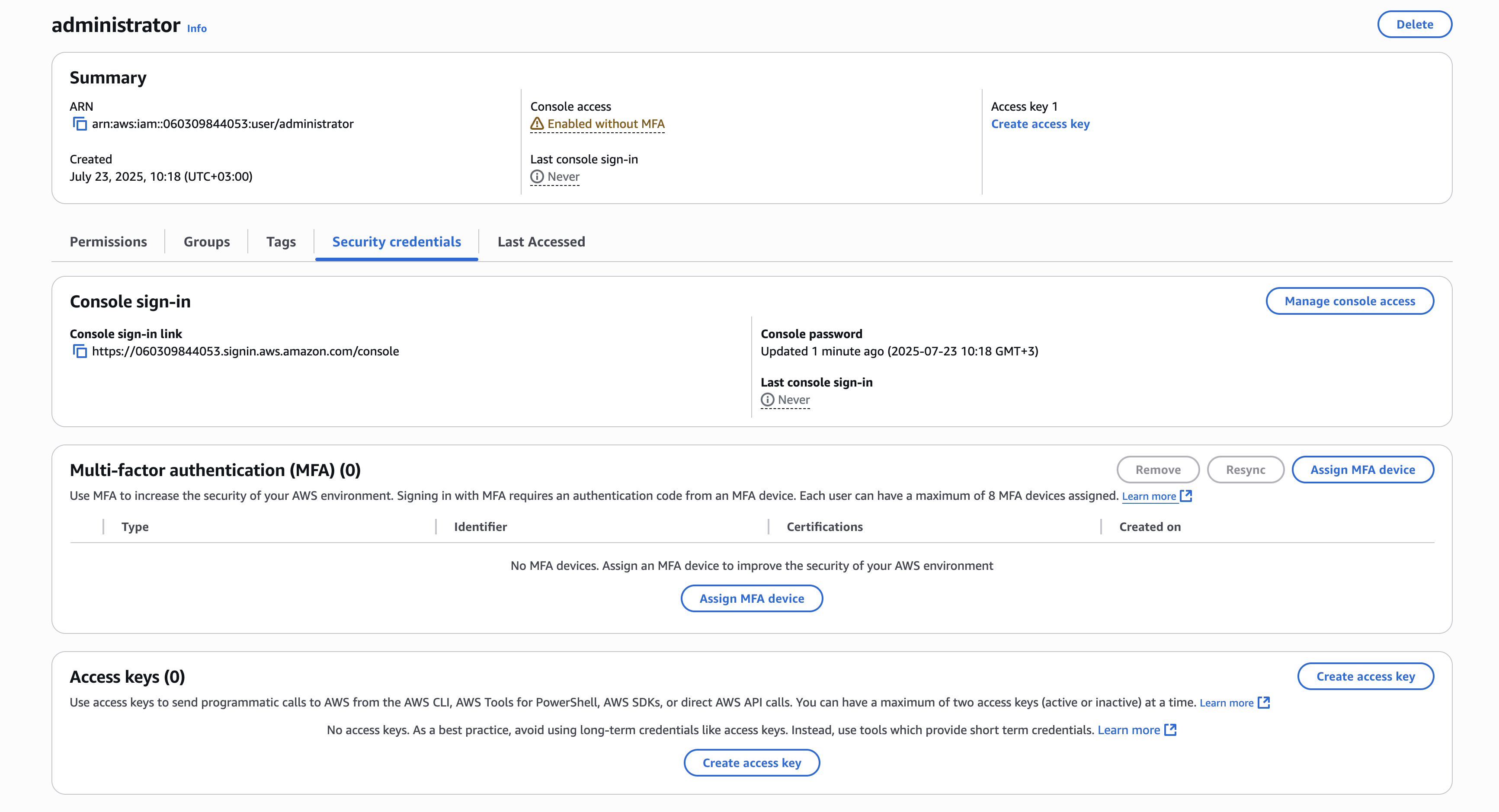
Click Assign MFA device and repeat the process you followed for the root account.
Once set, your IAM user is now MFA-enabled.
Step 4: Create Access Keys for CLI Use Link to heading
For programmatic access using the AWS CLI, generate access keys for your admin IAM user.
From the Security credentials tab, click Create access key.
Specify Use Case Link to heading
Select Command Line Interface (CLI) as the intended use.
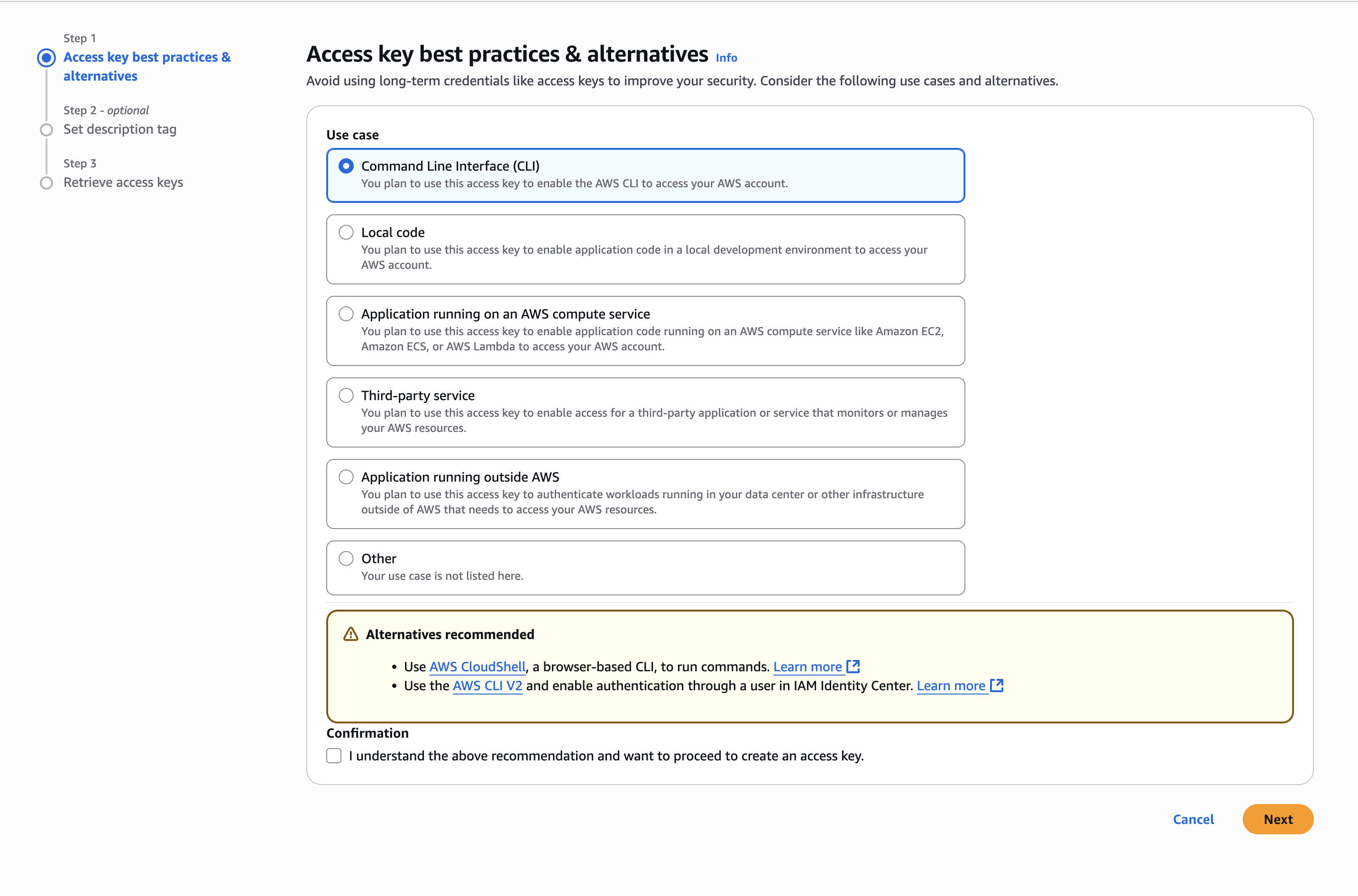
Confirm your understanding of the best practices.
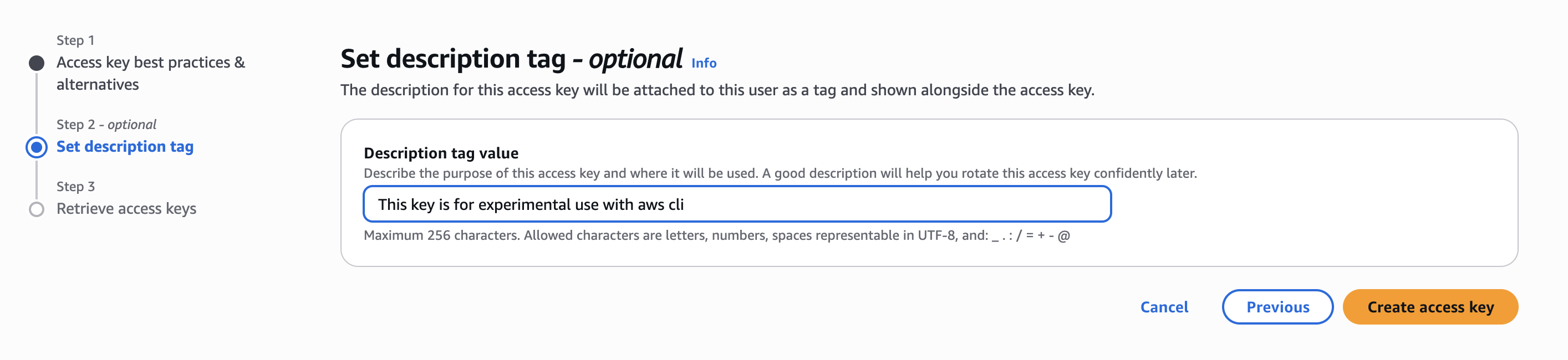
Add a Description Tag Link to heading
Optionally, describe the purpose of the key.
Retrieve and Secure Keys Link to heading
Once created, you’ll see the access key and secret. Save them immediately—this is the only time AWS will show the secret key.
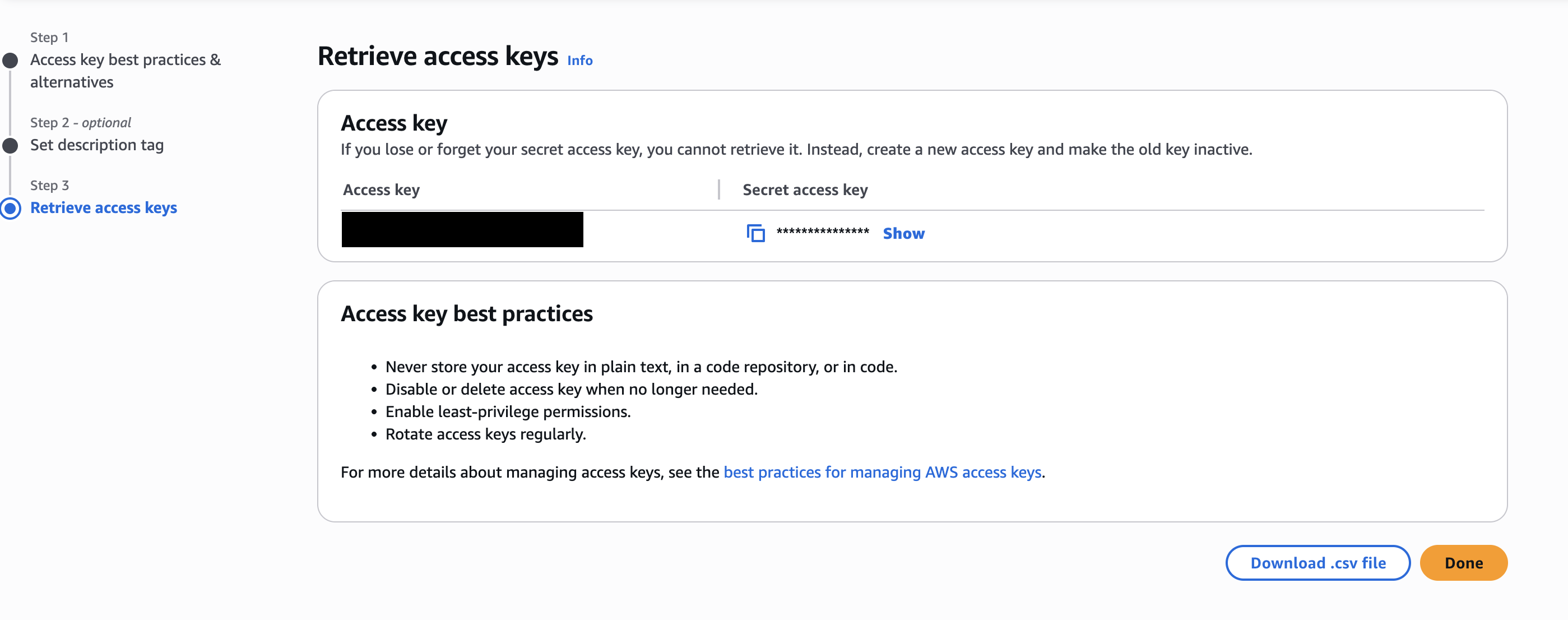
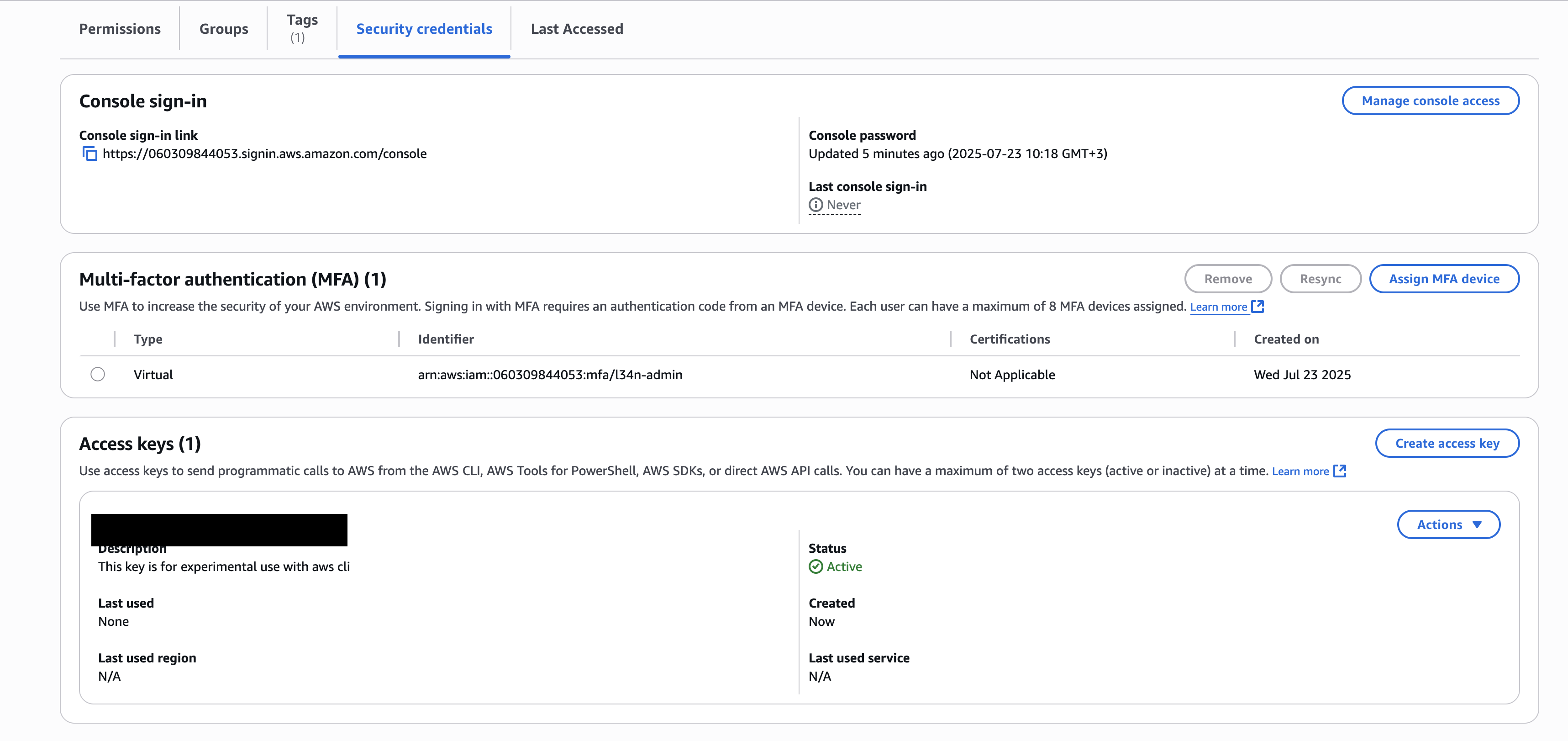
Your admin user’s security credentials will now reflect the created access key.
Conclusion Link to heading
You’ve now taken the critical first steps to secure your AWS account:
- Your root user is protected with MFA
- You’ve created a dedicated IAM admin user
- MFA has been enabled on that user
- Access keys are set up for secure CLI usage
These actions align with the principle of least privilege and AWS best practices. Always limit root account usage, rotate access keys periodically, and use IAM roles or temporary credentials where possible.
Security is a journey. Start strong.